


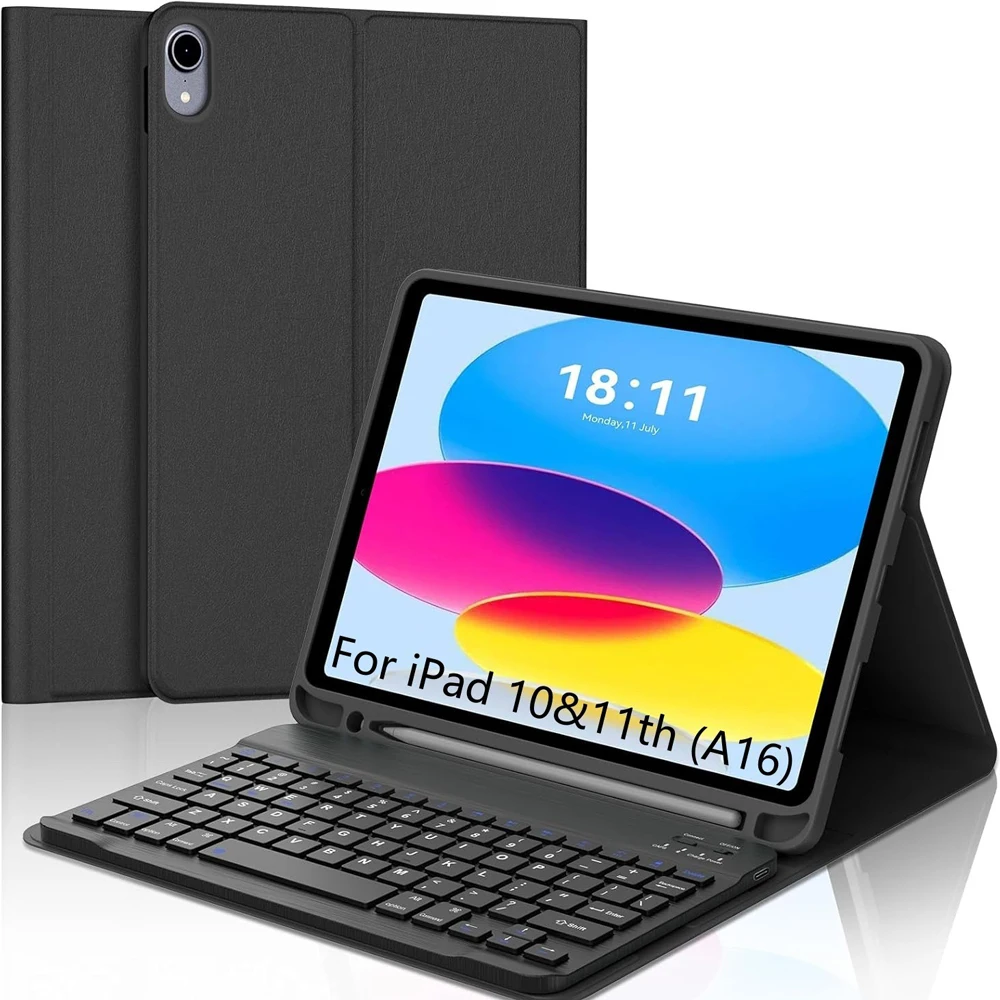
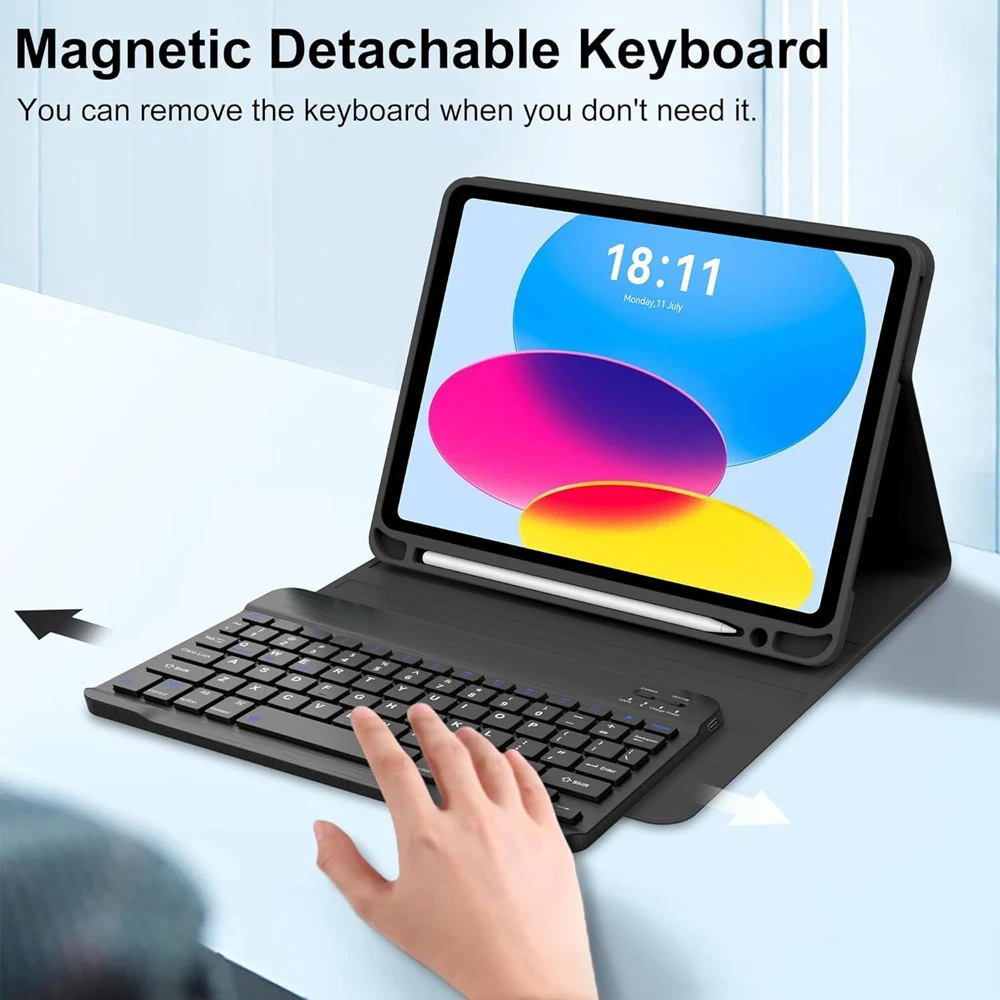
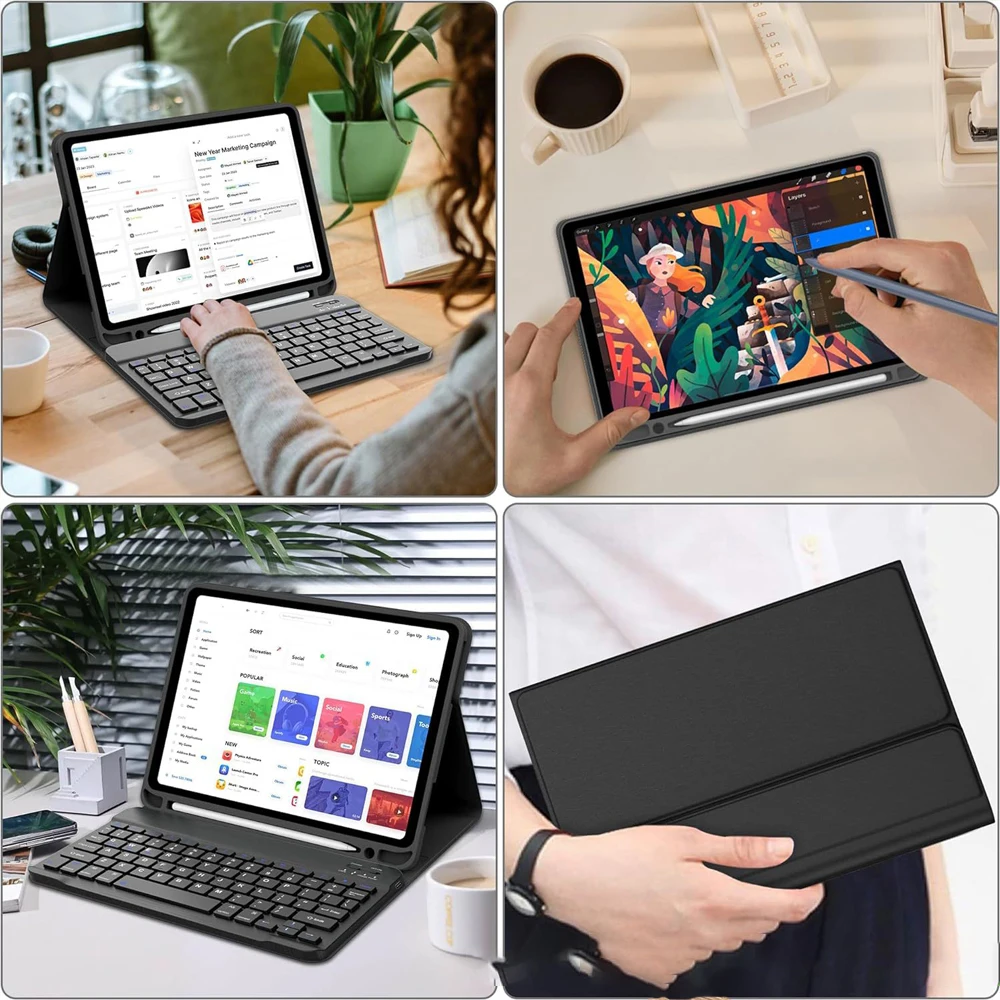
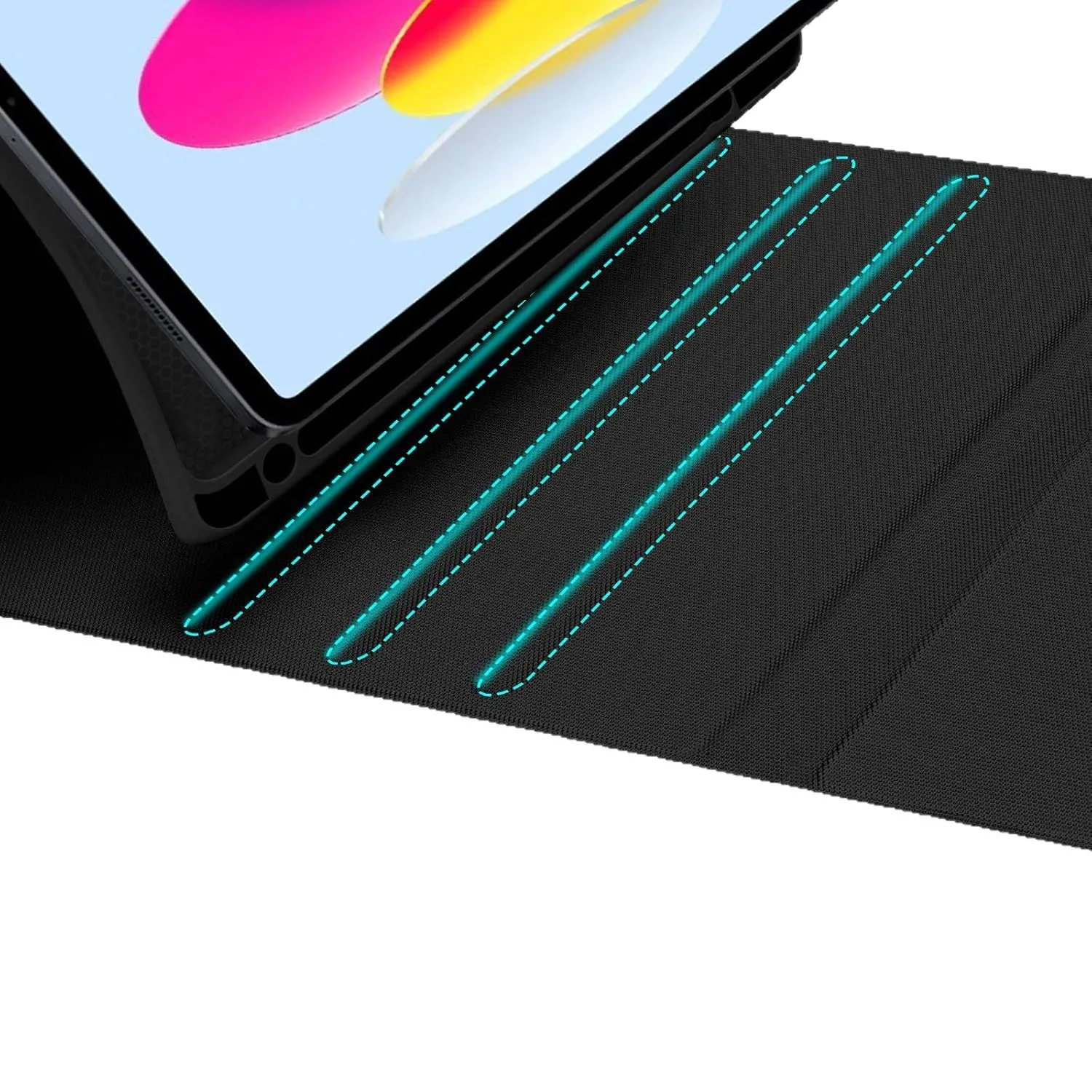
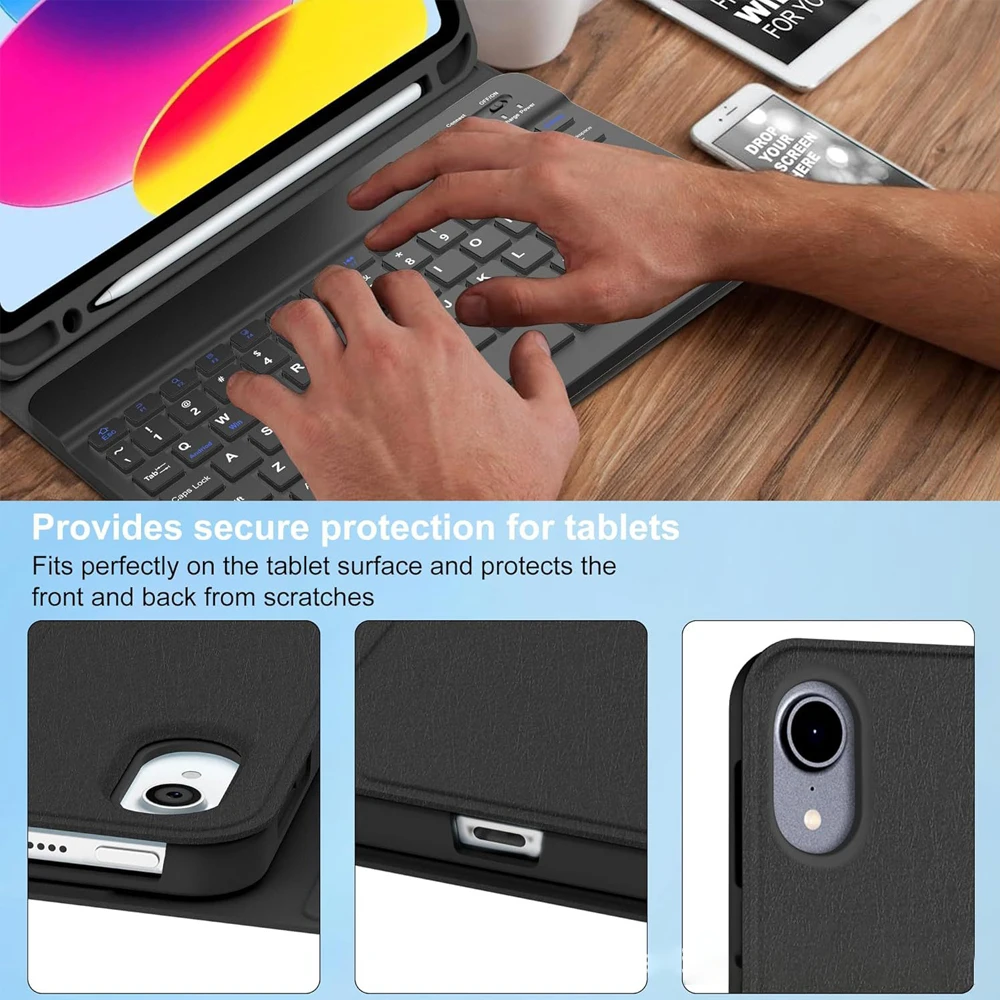
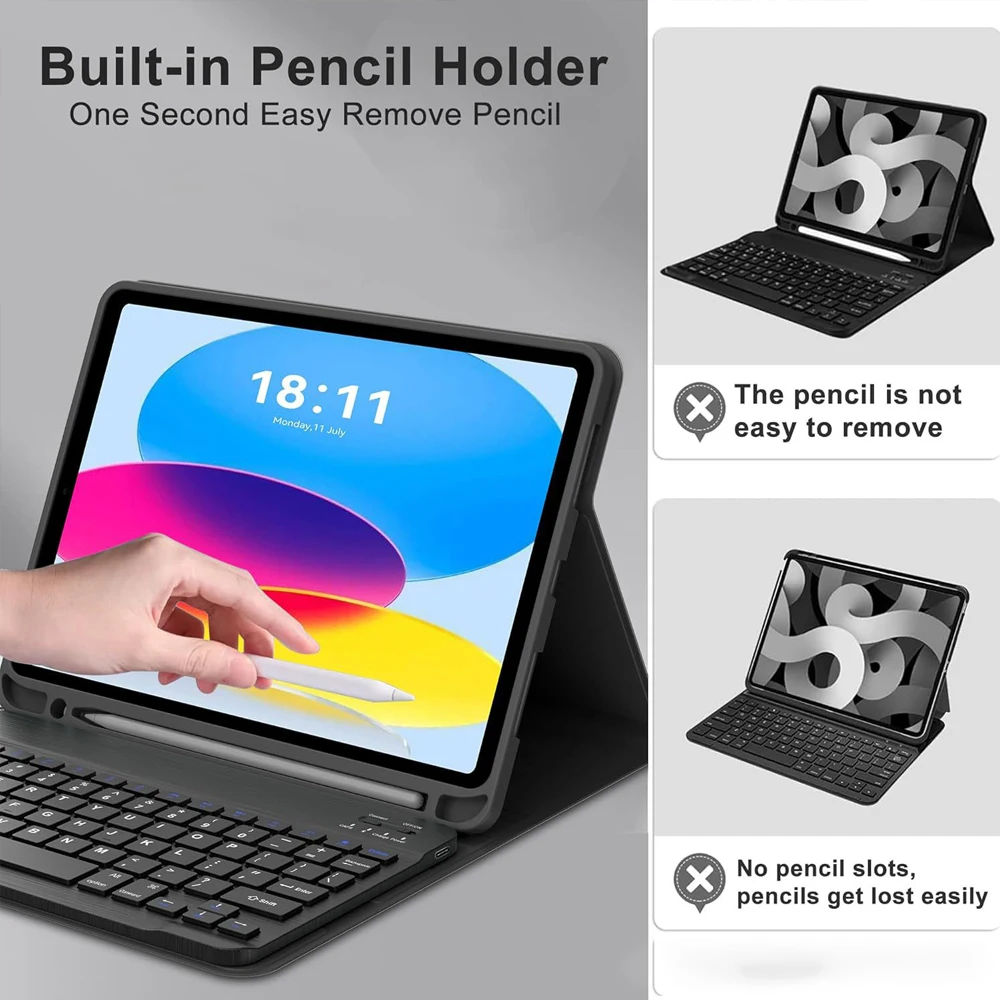
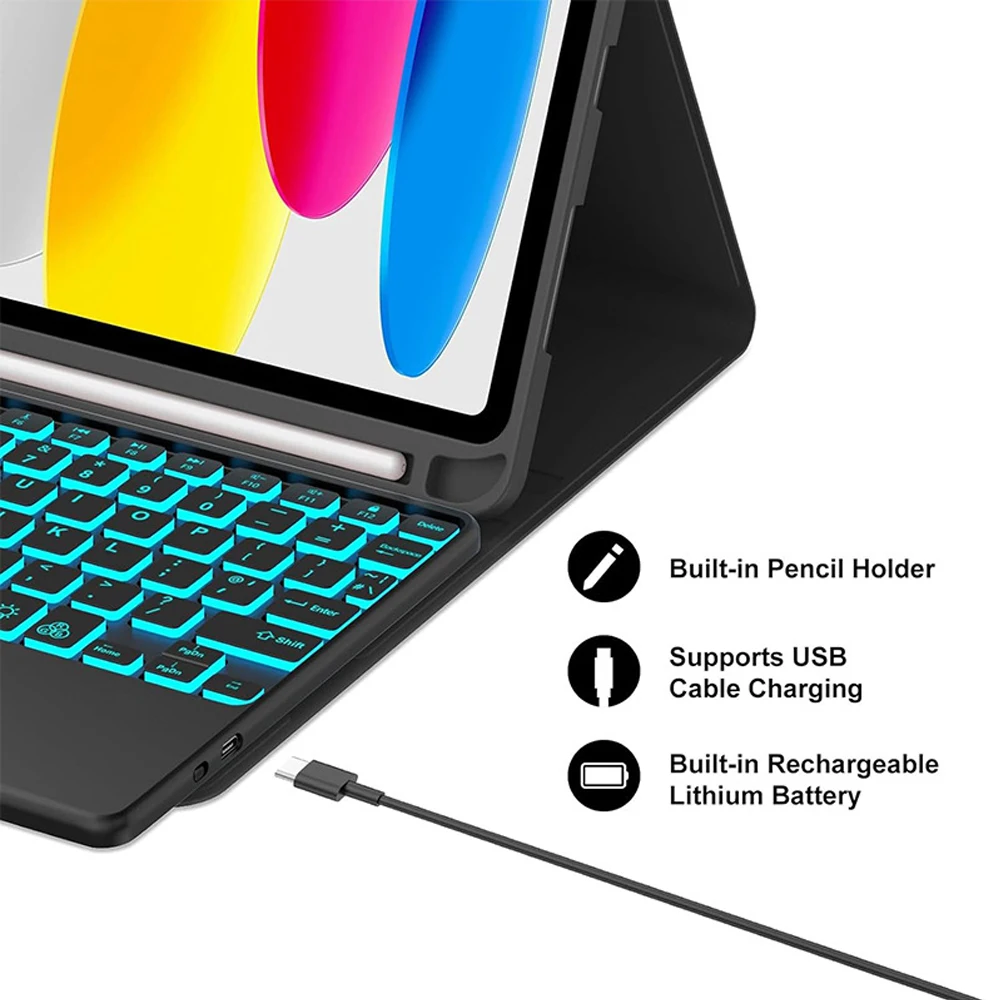
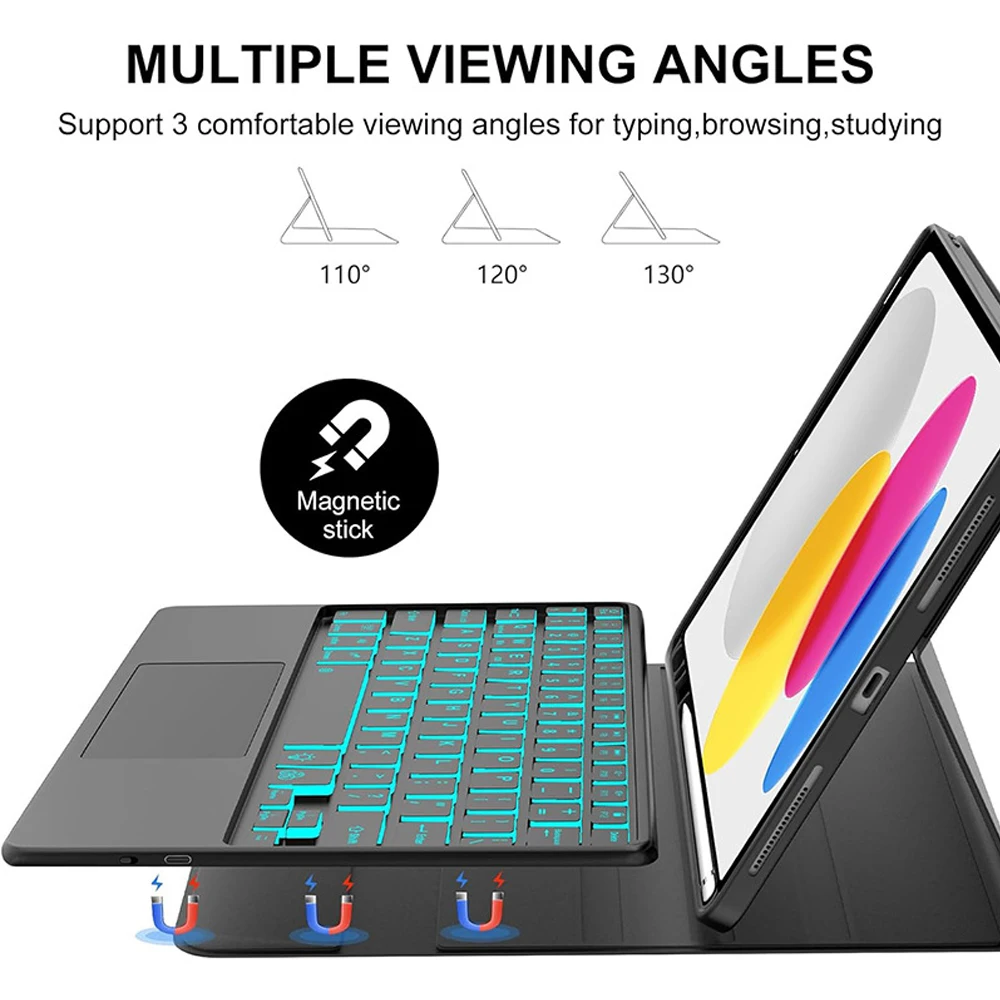
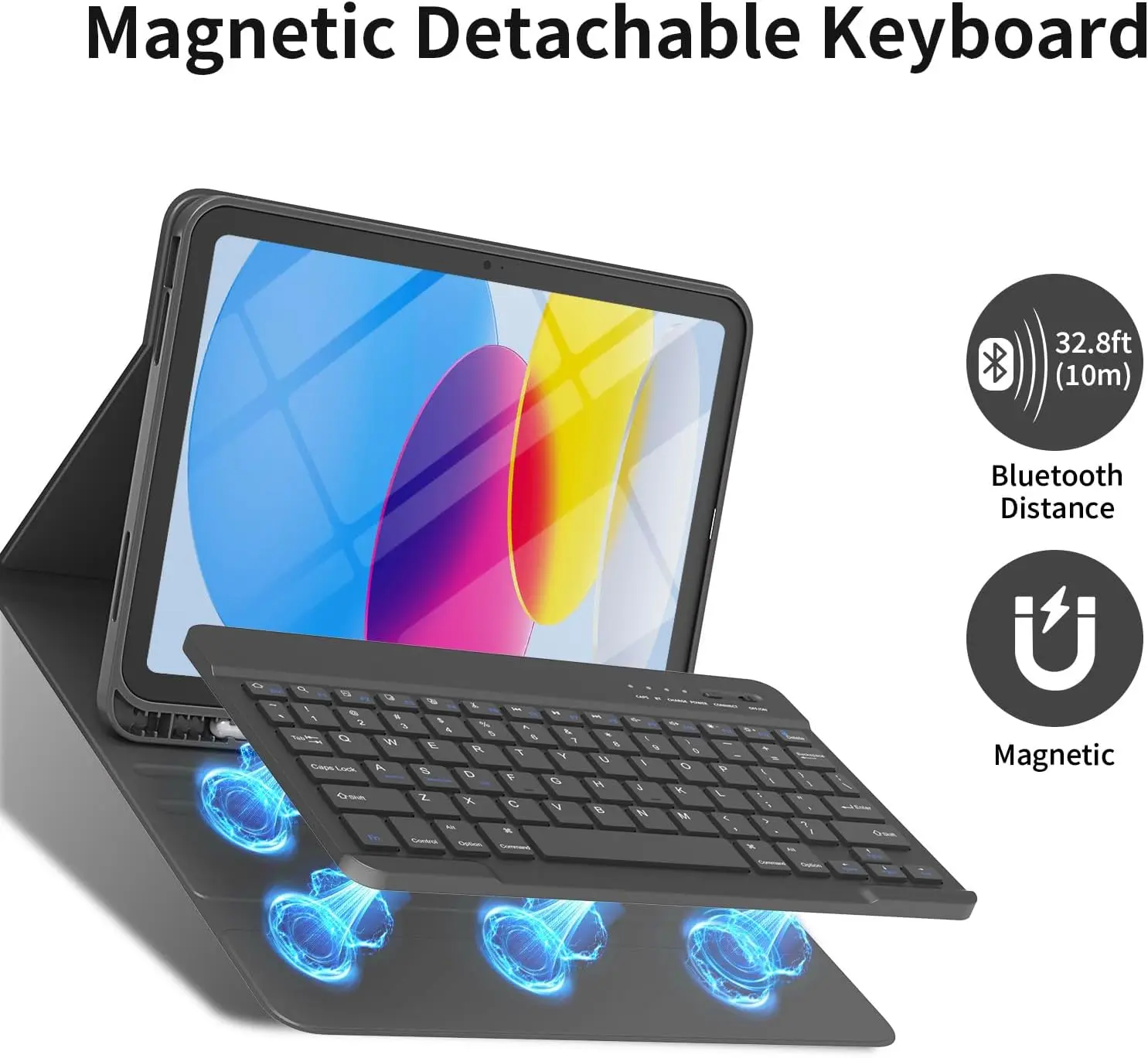
Keyboard Case for iPad (A16) 11th/10th Generation,Detachable Wireless Keyboard,Stand Folio Keyboard Cover with Pencil Holder


Keyboard Case for iPad (A16) 11th/10th Generation,Detachable Wireless Keyboard,Stand Folio Keyboard Cover with Pencil Holder
SPECIFICATIONS
Application Laptop Size: 11",10.9"
Battery Included: Yes
Brand Name: HUAIBX
Choice: yes
Compatible Brand: For Apple iPad
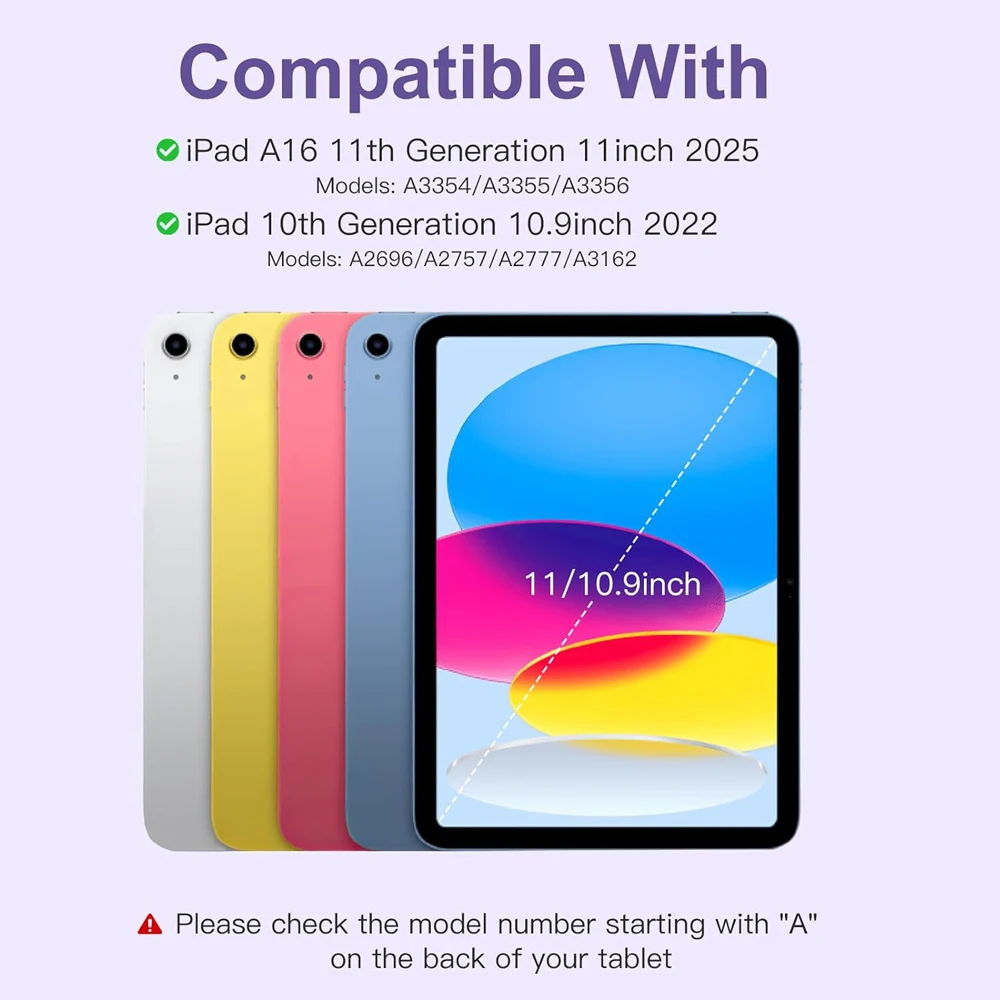
Compatible Model 1: iPad 10th Generation 10.9-inch(2022 Model:A2696/A2757/A2777/A3162)
Compatible Model 2: iPad 11-inch A16(2025 Model:A3355/A3356/A3354)
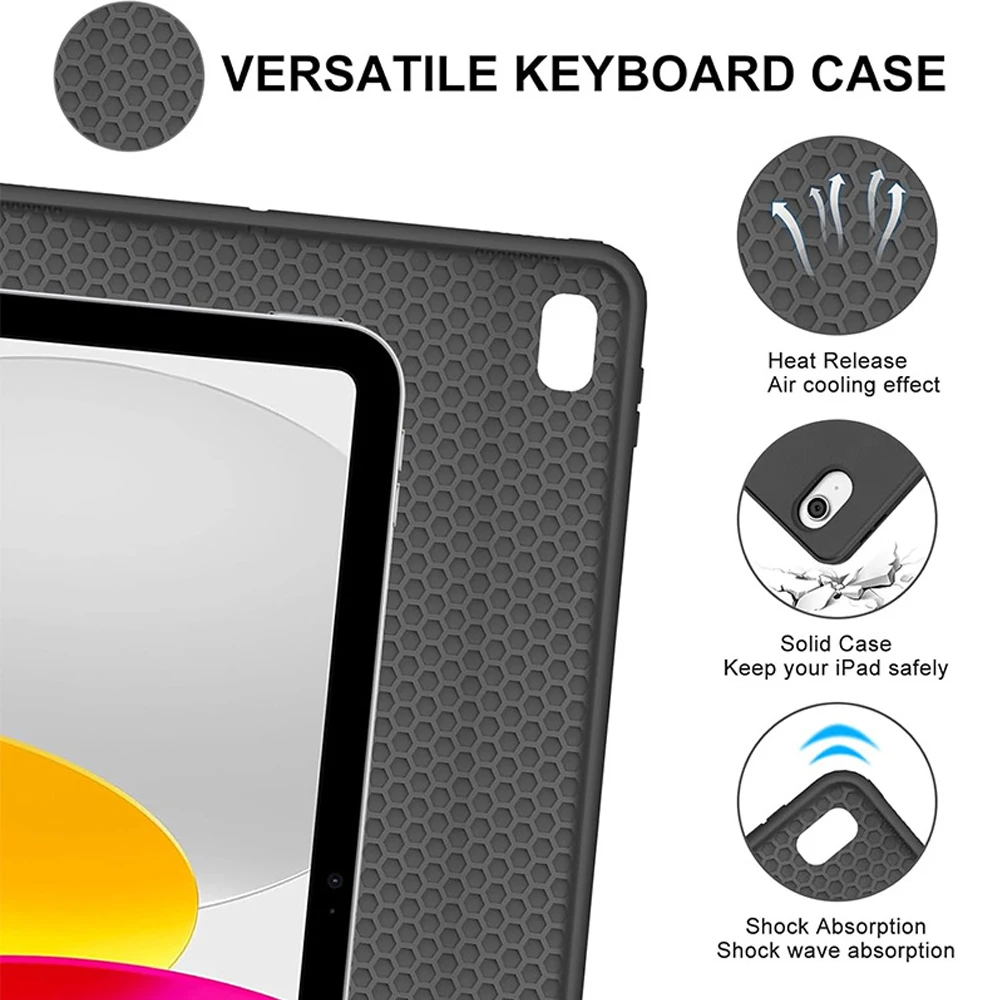
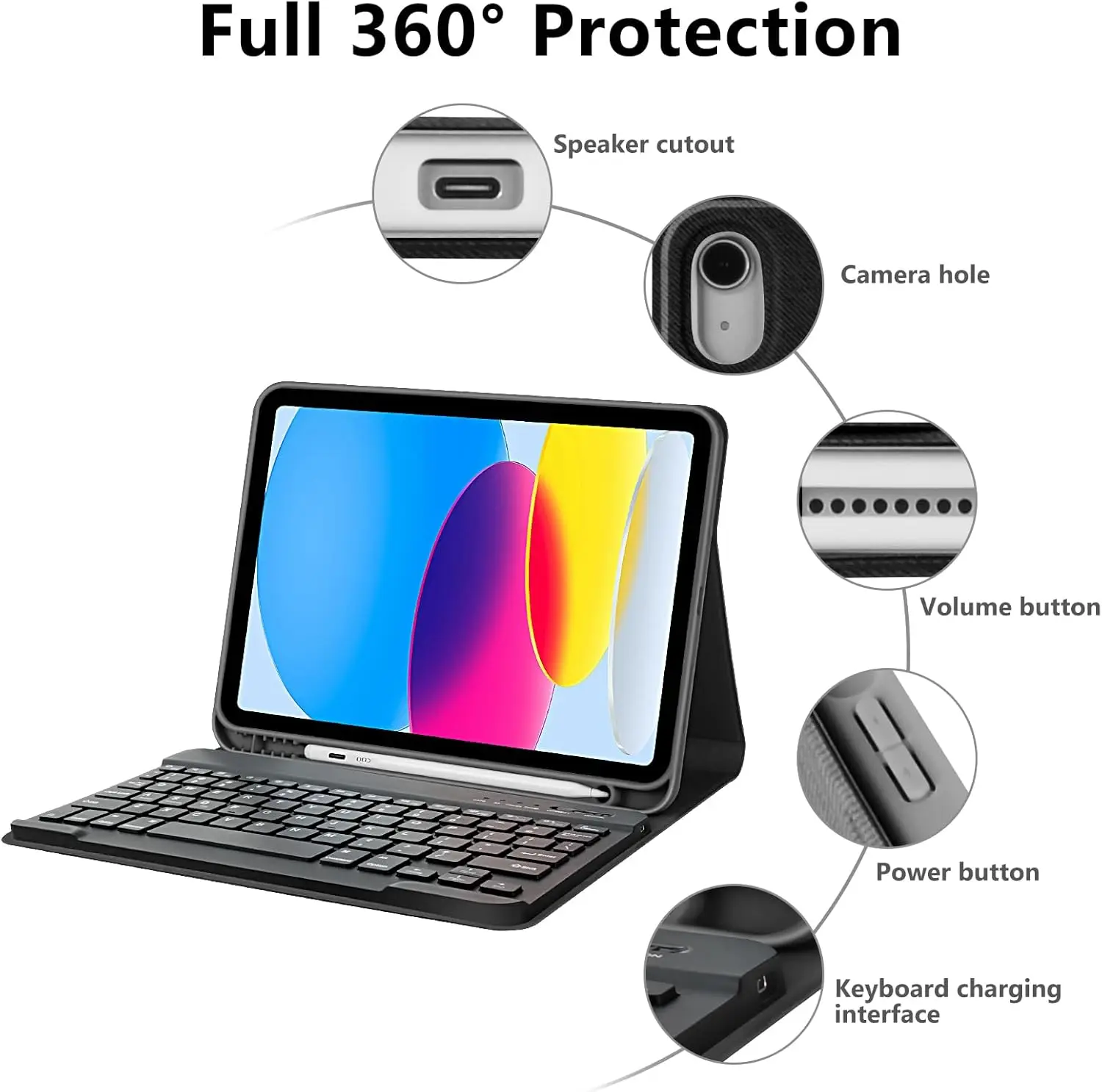
Feature: Waterproof,Shockproof,Anti-Dust
High-concerned chemical: None
Material: TPU
Origin: Mainland China
Package: Yes
Pattern Type: Solid
Style: Fashion
Type: With Keyboard
The tablet case in this link is only compatible with models:
iPad 10th Generation 10.9-inch(2022 Model:A2696/A2757/A2777/A3162)
iPad 11-inch A16 2025(2025 Model:A3355/A3356/A3354)
How to verify tablet model
1. Go to the back and find your specific model.
2. Find "Settings" - Click "About" - Find "Model"
3. Please purchase the correct compatible model case according to the tablet after viewing.
Note:The digital tablet and stylus are not included in the package. The detailed description is for reference only. Please refer to the actual product for the color of the product.
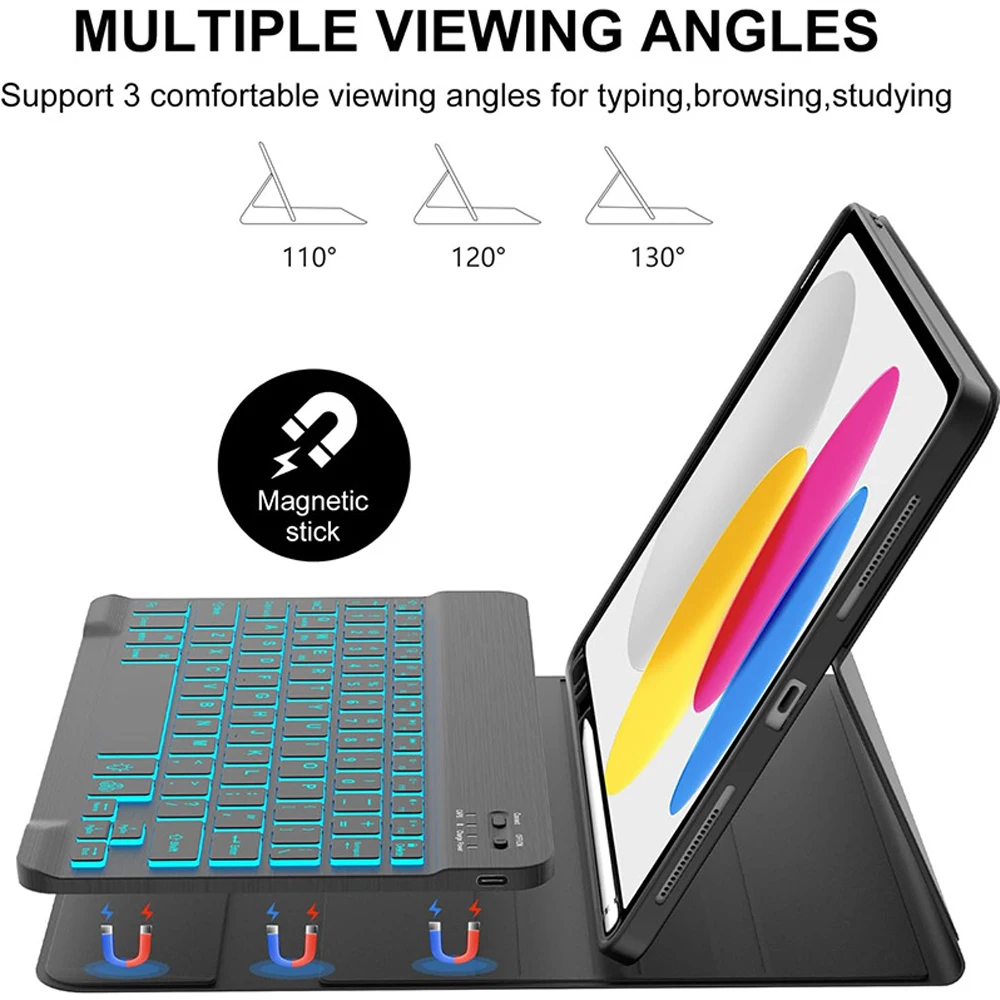
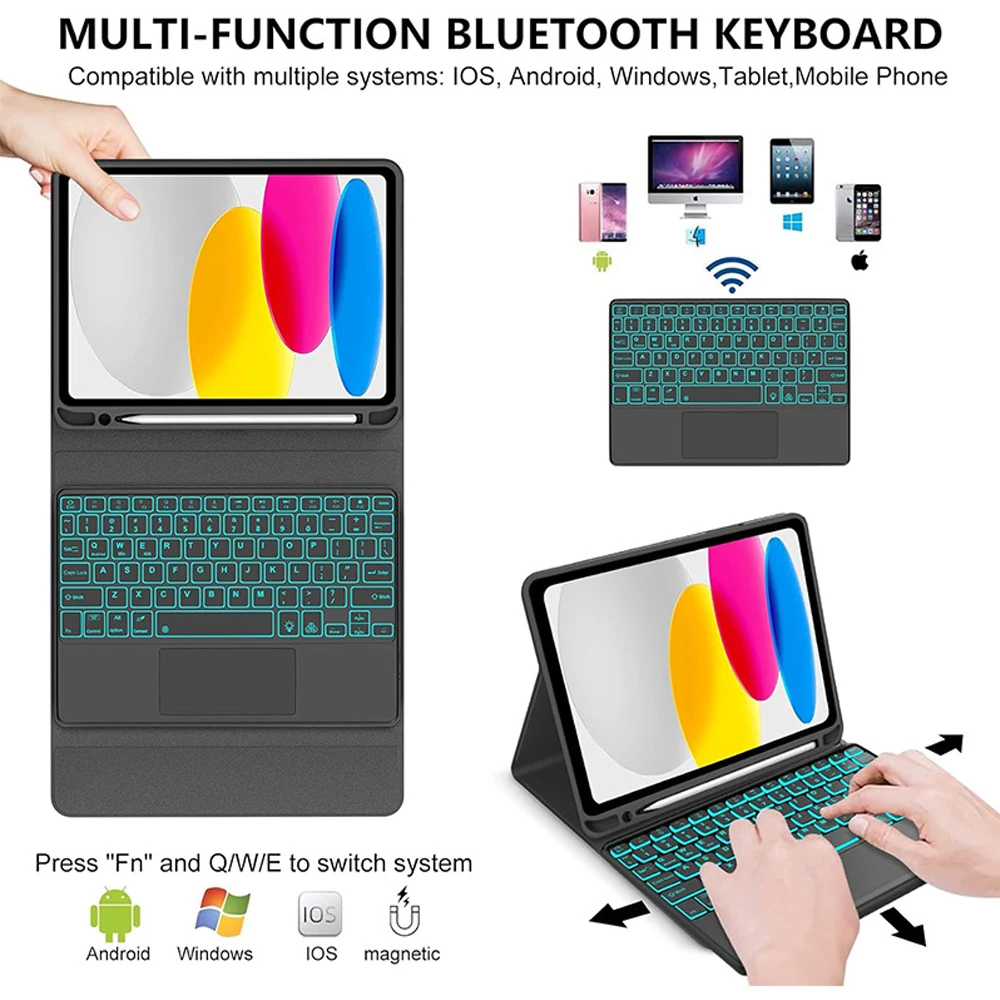
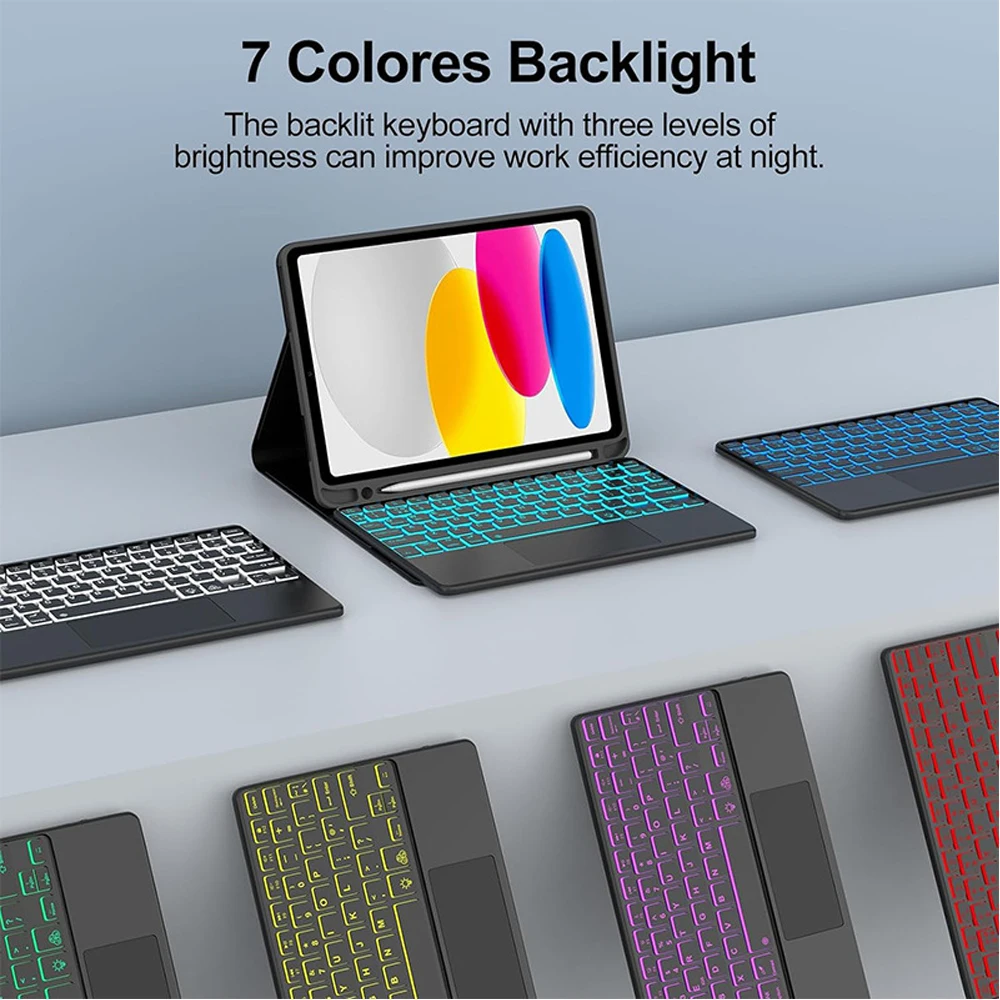
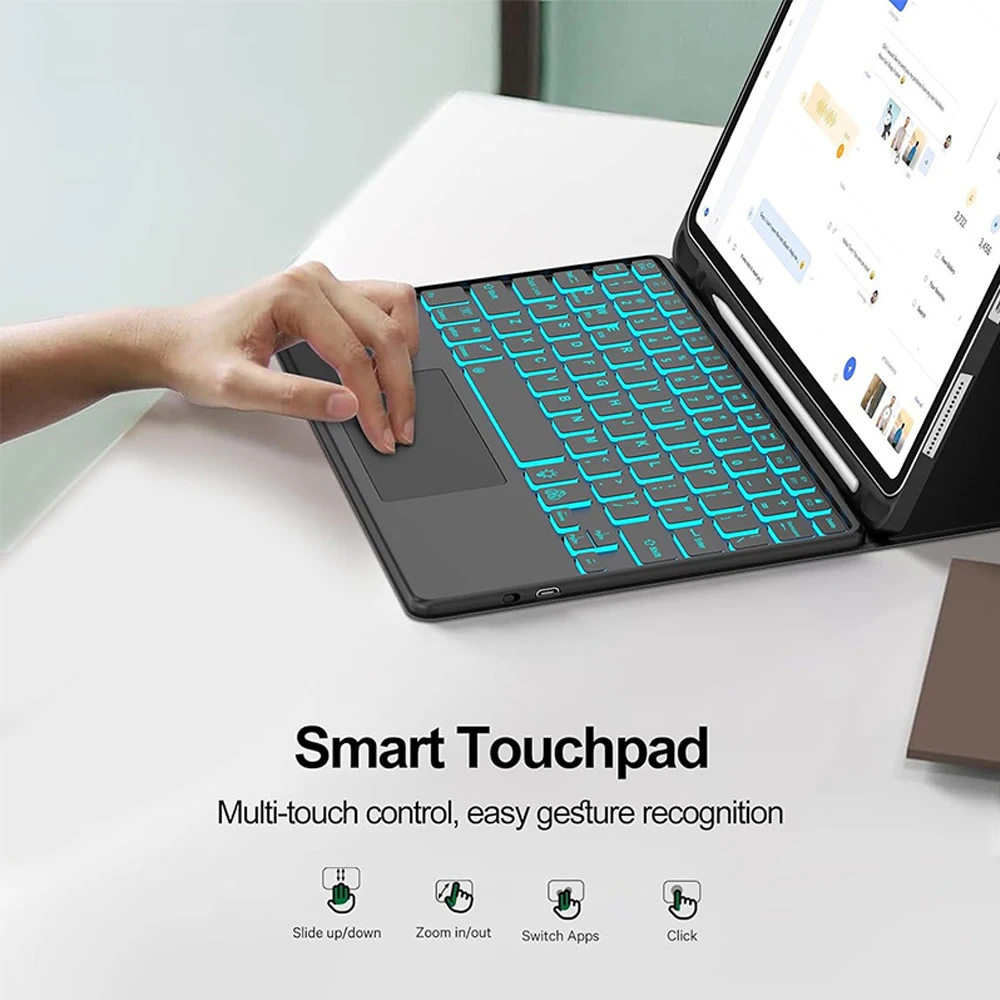
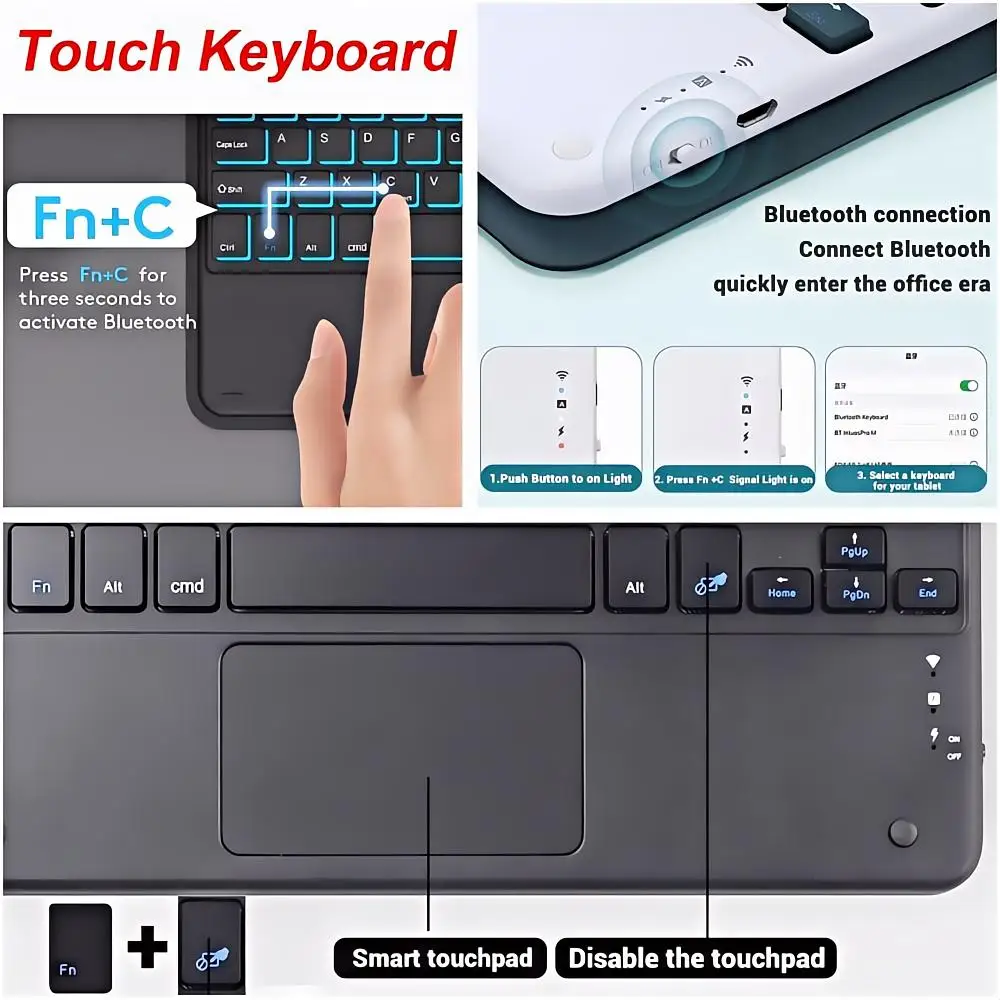
How to connect keyboard and mouse?
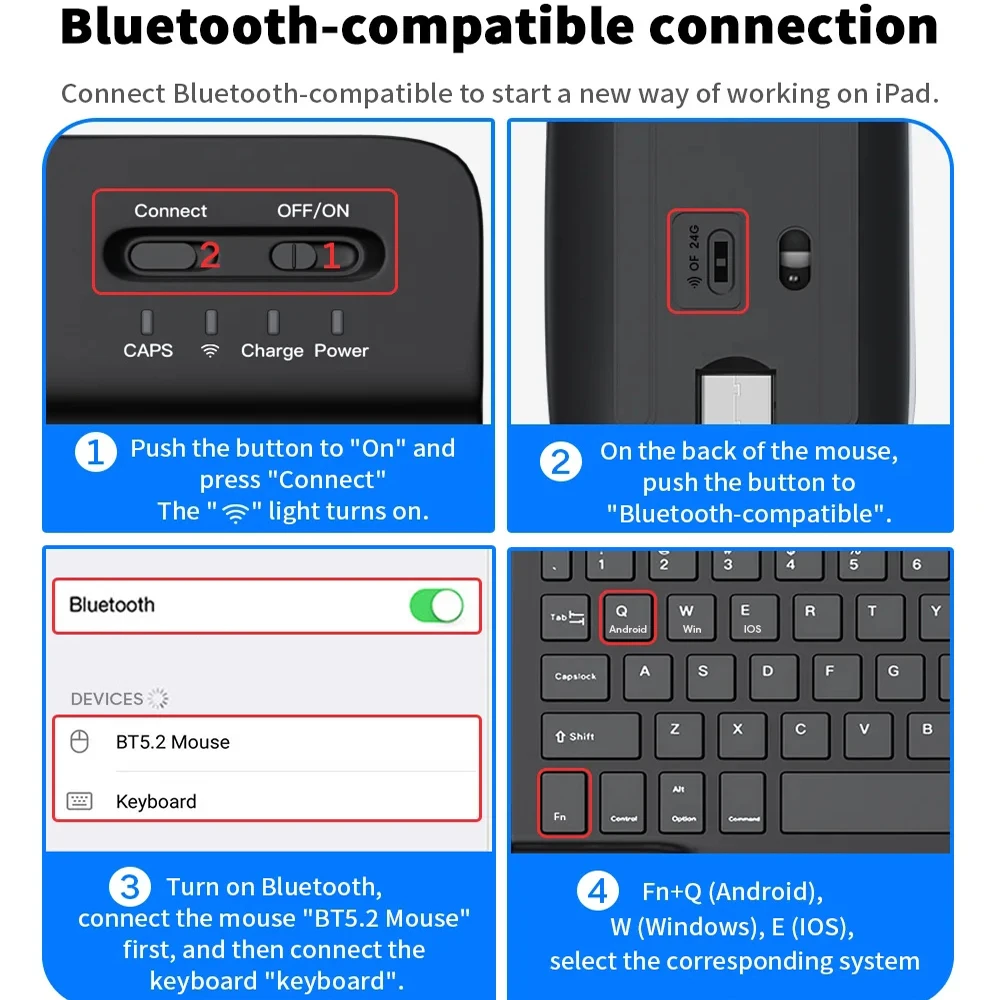
1. Connect the mouse first, then the keyboard.
2. Mouse: Push the switch to the "Bluetooth" icon and find the Bluetooth connection with the "mouse" in the device Bluetooth list.
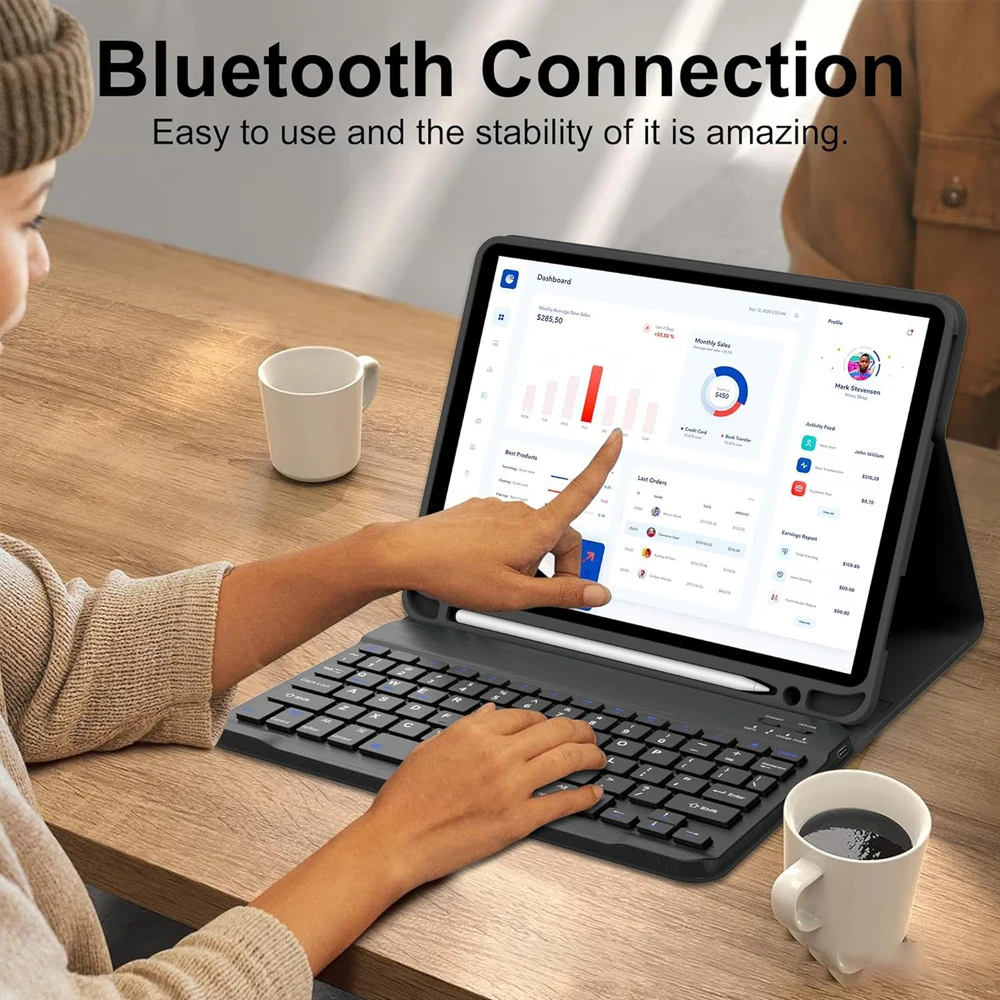
3. Keyboard: Push the switch in the upper right corner to "ON", press "Connect", and find the Bluetooth connection with "Keyboard" in the device Bluetooth list.
4. Touchpad keyboard: Open the keyboard, press Fn+C, and then find the Bluetooth connection with "Keyboard" in the device Bluetooth list.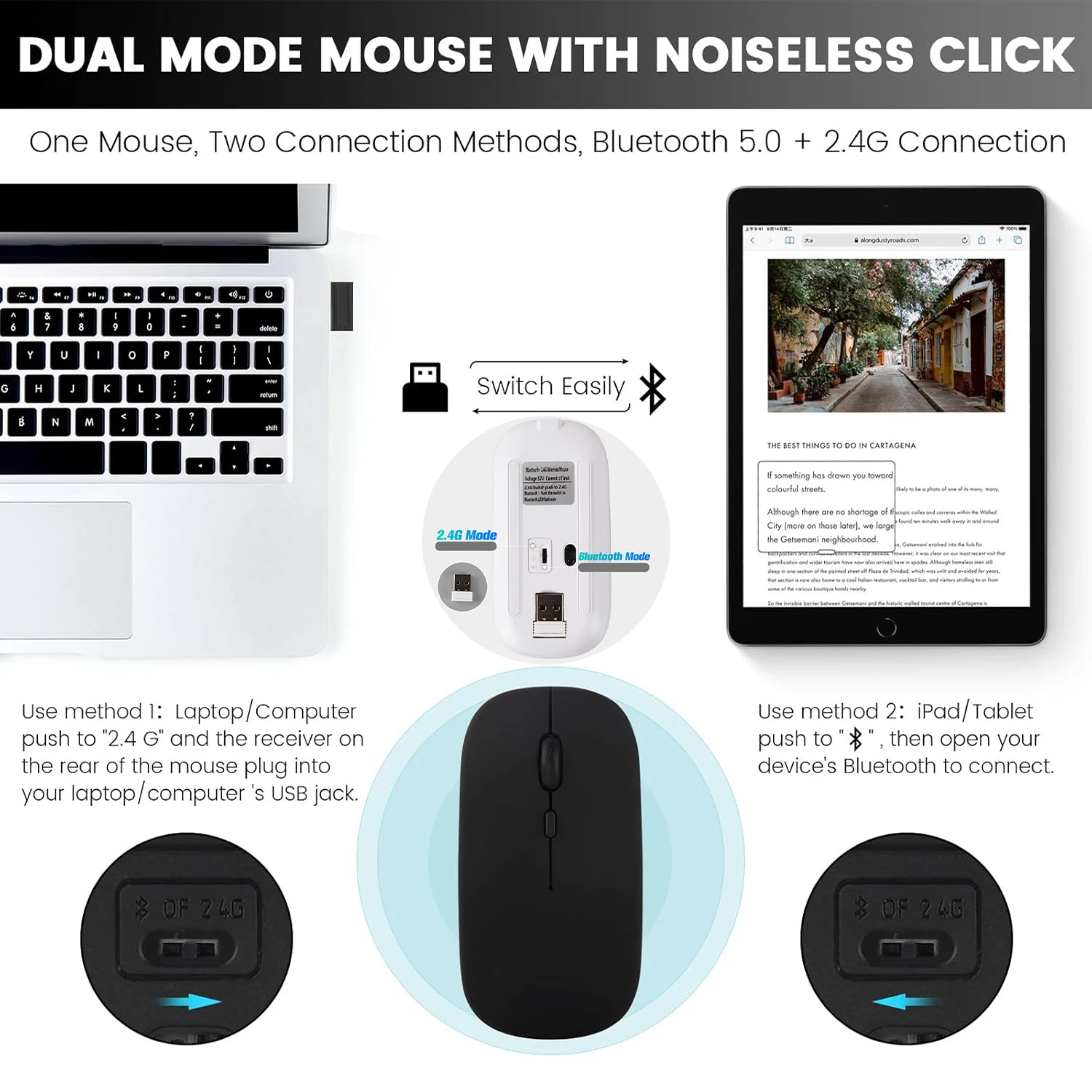
FAQ
Q:What should I pay attention to when connecting the mouse for the first time?
A:When the mouse is connected for the first time, you need to press the left button, the right button and the scroll wheel at the same time for about 3-5 seconds.
Q: Is the scroll direction of the mouse USB connector and Bluetooth connection the same?
A: No, they are different. When using the USB connector, the scroll wheel slides in the same direction as the computer mouse. Bluetooth connection is the opposite.
Q: How to switch between different systems?
A: Fn+Q=Android, Fn+W=Windows, Fn+E=IOS.
Please note that please switch the system before connecting the tablet.
Q:The bluetooth keyboard letters are messy?
A: Please check the settings according to the prompts,
a. Check whether the keyboard language set on the device is English.
b. Disconnect the keyboard Bluetooth, click Ignore the connected device, reopen the Bluetooth keyboard, select system, Fn+E (IOS system).
Note: Fn+Q=Android, Fn+W=Windows, Fn+E=IOS
c. Press the L S Z buttons at the same time to reset the keyboard
Q:How to configure the input method for different languages keyboard?
A:Take the samsung tablet as example,open "Settings--"ystem"--"Language & input"--"Add New Keyboard". (For other systems, please set them in the system settings according to the tips of the iPad example.)
Q:How does the mouse change teh scroll wheel sliding direction on the device?
A: The mouse is connected, open "General" - "Trackpad & Mouse" - close "Natural Scrolling".